Dashboard tour
Every node with an HTTP address serves a dashboard. When the node is on a hub, its dashboard also shows and manages every other node on that hub, so you can work from whichever node is closest.
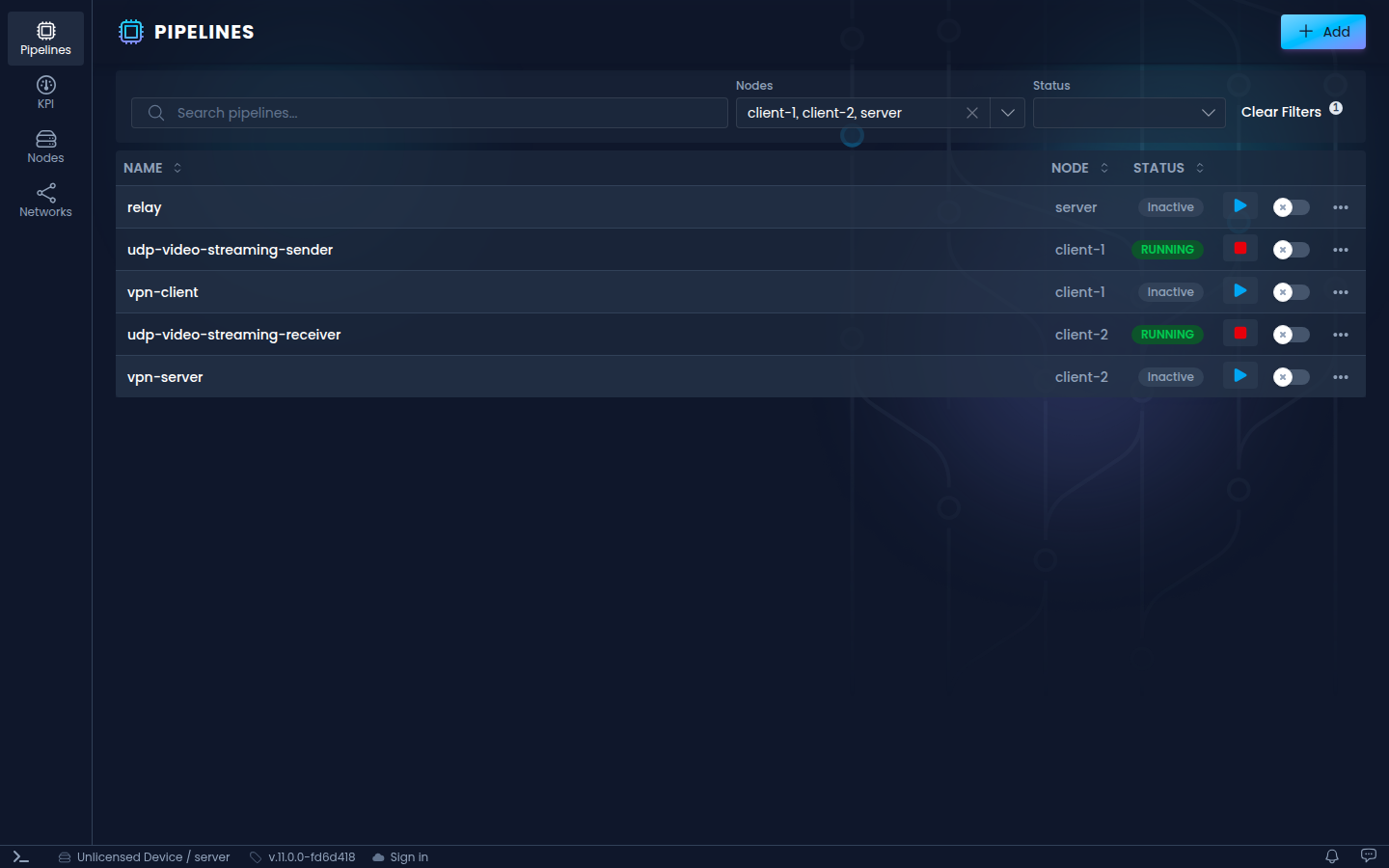
One dashboard for every node
The dashboard of a single node is enough to control every node on its hub. Open the dashboard of a node you can reach, such as your own hub server, and every other node is in its Nodes section: their pipelines, KPIs, networks, System, Log and Settings pages all open from there. The dashboard reaches those nodes through the hub, never through their own addresses.
So only the node whose dashboard you open needs an HTTP address. The others can run without one, which leaves no dashboard port open on them to expose or protect.
Sections
The sidebar on the left switches between the sections:
| Section | What you do there |
|---|---|
| Pipelines | List, add, start and stop pipelines on any node. Filter by node and status. See Creating a pipeline. |
| KPI | Watch the KPIs of all running pipelines in one place. See KPIs. |
| Nodes | See every node on the hub and whether it is connected. See Nodes. |
| Networks | Create and manage networks. Shown when a node on the hub keeps networks. |
Nodes
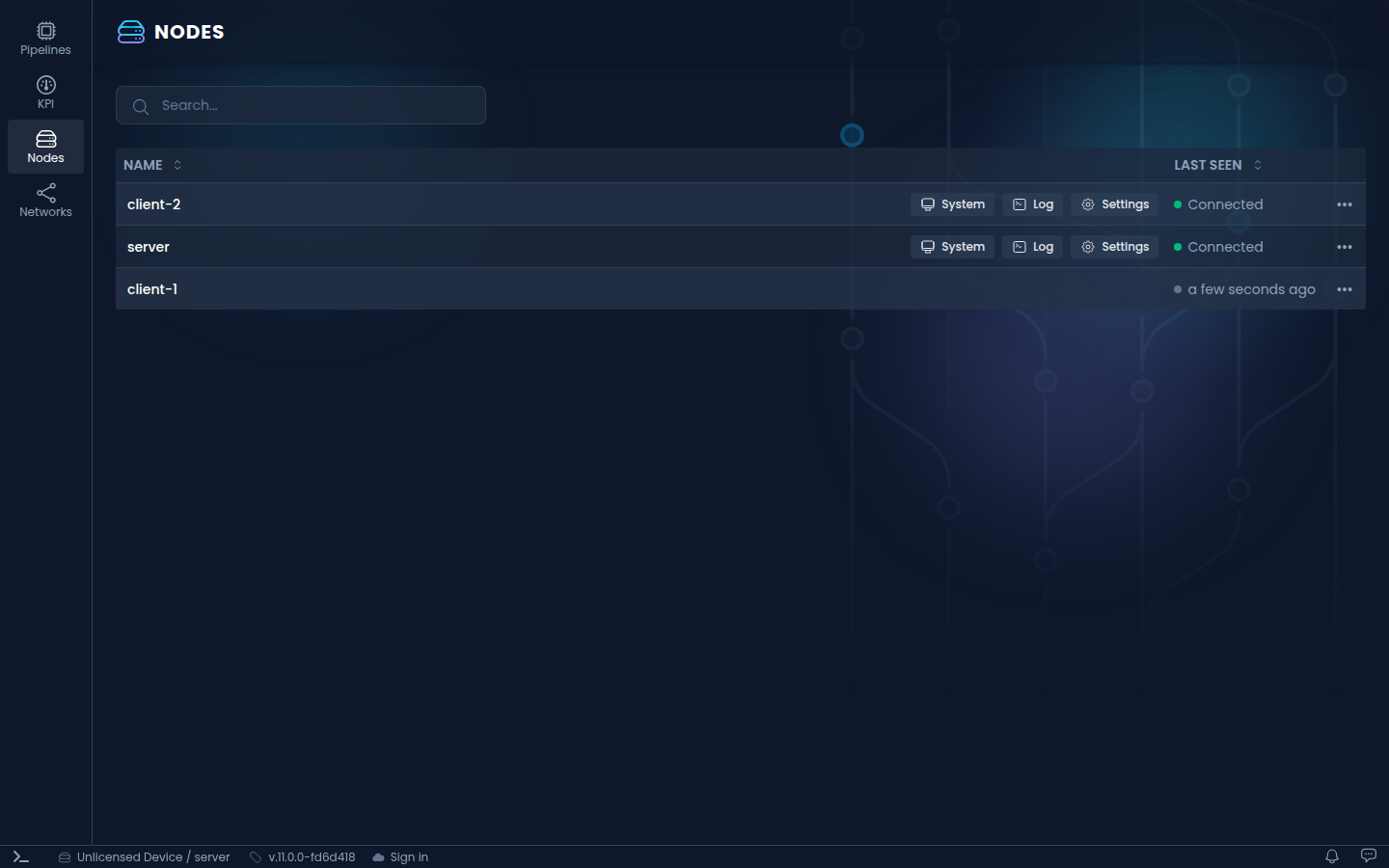
Each row has shortcuts to that node's pages:
- System: CPU, memory and disk usage, and the node's network interfaces. Expand an interface to see its live network flows.
- Log: the node's own log.
- Settings: the node's name, error reporting, metric display settings and hub connection.
On a hub server, the ⋯ menu of a row can remove the node from the hub.
Status bar
The bar along the bottom shows, from left to right:
- Command palette: opens the command palette.
- Node: your organization and the name of the node whose dashboard you are on. Click it to open the device in your NanoPing account.
- Version: the NanoPing version. Click it for the release notes.
- Hub: the hub this node is on, or Connect to hub if it is on none.
- Sign in or Cloud library: sign in to your NanoPing account to store pipelines in the cloud library and add them to any node.
- Notifications and Give feedback, on the right.
Command palette
The command palette lists every command with its keyboard shortcut. Open it with Ctrl + Shift + P (⌘ + Shift + P on macOS), then type to search.
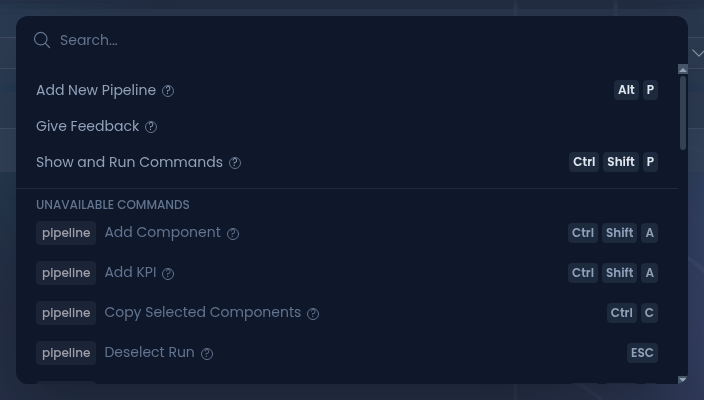
Commands that do not apply to the current page are listed under Unavailable commands, so the palette doubles as an overview of all shortcuts.