Creating a pipeline
A pipeline is the set of instructions a node runs: a diagram of components that read traffic from an application or interface, protect it, send it over one or more connections and deliver it at the other end. Usually a pair of pipelines works together, one on each node.
To add one, open Pipelines and click Add in the top-right corner, or press Alt + P. Pick how to start:
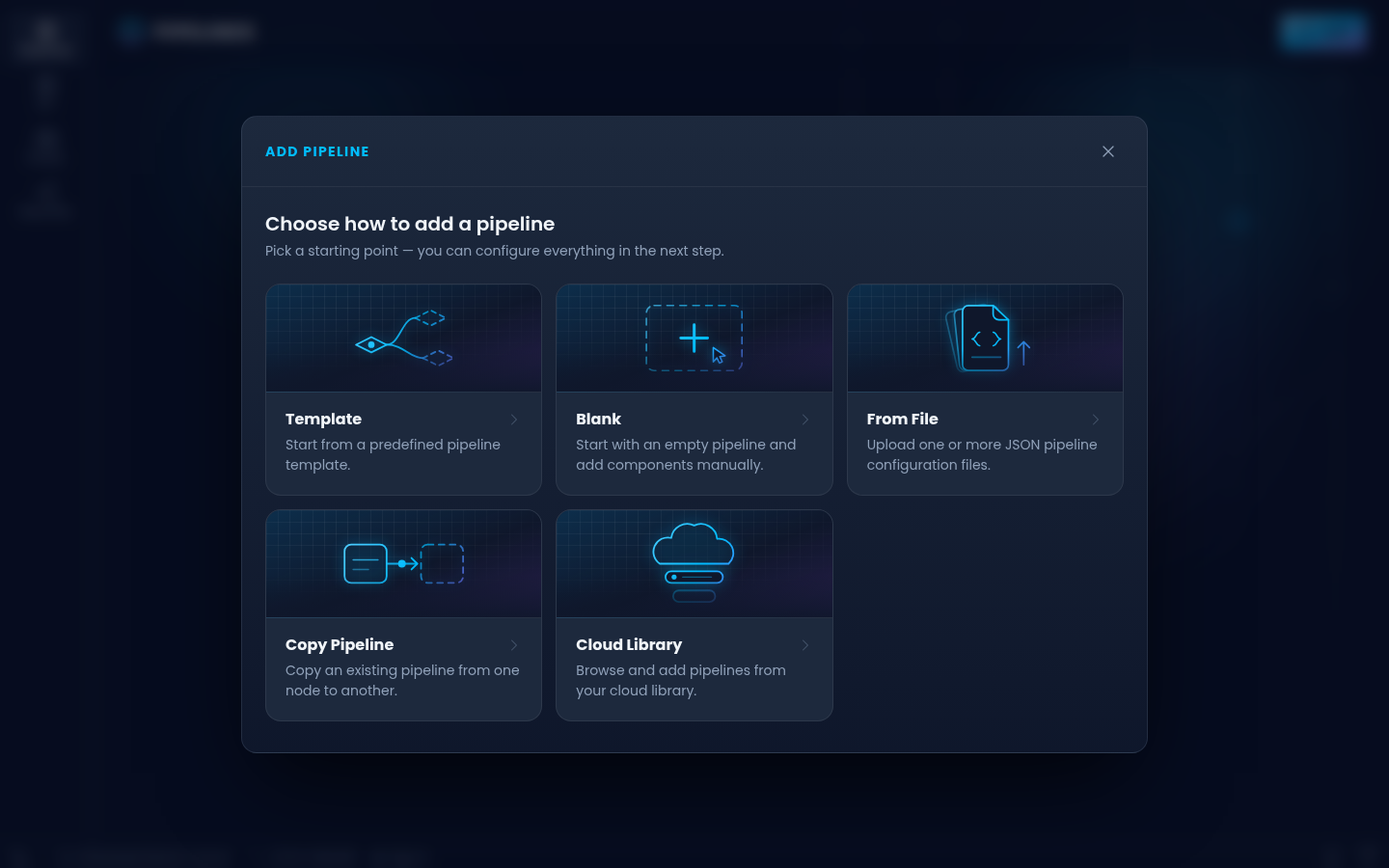
| Option | Use it to |
|---|---|
| Template | Answer a few questions and get a working pair of pipelines. The quickest start. |
| Blank | Build a pipeline yourself, component by component. |
| From File | Import pipelines saved as JSON, such as the reference setups. |
| Copy Pipeline | Copy a pipeline from one node to another. |
| Cloud Library | Add a pipeline you stored in your cloud library. |
From a template
A template asks for the few things that differ between setups and generates the pipelines for both ends. Two templates are available:
- UDP Video Streaming carries a UDP stream, such as RTP video, from a sender to a receiver over one or more connections.
- VPN Tunnel connects two nodes with a TUN interface on each, so any IP traffic can pass between them.
The recording below sets up UDP Video Streaming from client-1 to client-2:
The steps are:
- Introduction: what the template sets up.
- Nodes: the sender and the receiver. You can pick any node on the hub.
- Application In/Out: the
ip:portthe sender's application sends to, and theip:portthe receiver delivers the stream to. Set interface binds either one to a specific network interface. - Connections: one
ip:porton the receiver per connection the traffic should use. Add one for each network interface you want to bond, for example Ethernet and cellular. The gear next to a connection sets the sender and receiver interface it uses. - Reliability: the Timeout, the latency budget in milliseconds. It must be higher than the latency of the connections, or no traffic gets through.
- Review: check the settings. The pencil on a row takes you back to that step.
- Deploy: creates the pipelines. Click Start pipelines to start both, or follow the links to open them.
Blank
Choose the Target Node and click Create Blank Pipeline. The pipeline opens in the diagram editor. Right-click the canvas to add a component, then drag from an output to an input to connect them. See The pipeline page and the component reference.
From File
Choose the Target Node, then drop one or more pipeline JSON files on the upload area, or click it to browse. Files saved by older versions of NanoPing are upgraded as they are imported.
To save a pipeline to a file, choose Download in the ⋯ menu of its row in the pipeline list, or Download pipeline in its settings.
Copy Pipeline
Choose the Source node and pipeline, then the Target node and a name for the copy, and click Copy. The Copy to... item in a pipeline's ⋯ menu does the same.
Cloud Library
The cloud library stores pipelines in your NanoPing account, so you can add them to any node. Click Sign In to sign in with your NanoPing account, then pick a pipeline.
To store a pipeline there, choose Export to library in the ⋯ menu of its row, or Export to cloud library in its settings.
Next steps
- The pipeline page: edit, start and monitor a pipeline.
- KPIs: add live tiles for the metrics that matter.
- Reference setups: complete setups to import.